Processing Tools
The Processing menu collects GeoLibre's analysis and conversion tools: vector geometry and overlay tools, raster terrain and clipping tools, AI segmentation, format conversion, and the Whitebox toolbox. The SQL Workspace, Python Console, AI Assistant, and AI Segmentation also live here and have their own pages.
Page order
This page groups the tools by theme. In the menu itself the items appear in a different order: AI Assistant (top), Whitebox, SQL Workspace, Python Console, Conversion, Vector, Raster, AI Segmentation, Planetary Computer, Earth Engine.
Vector
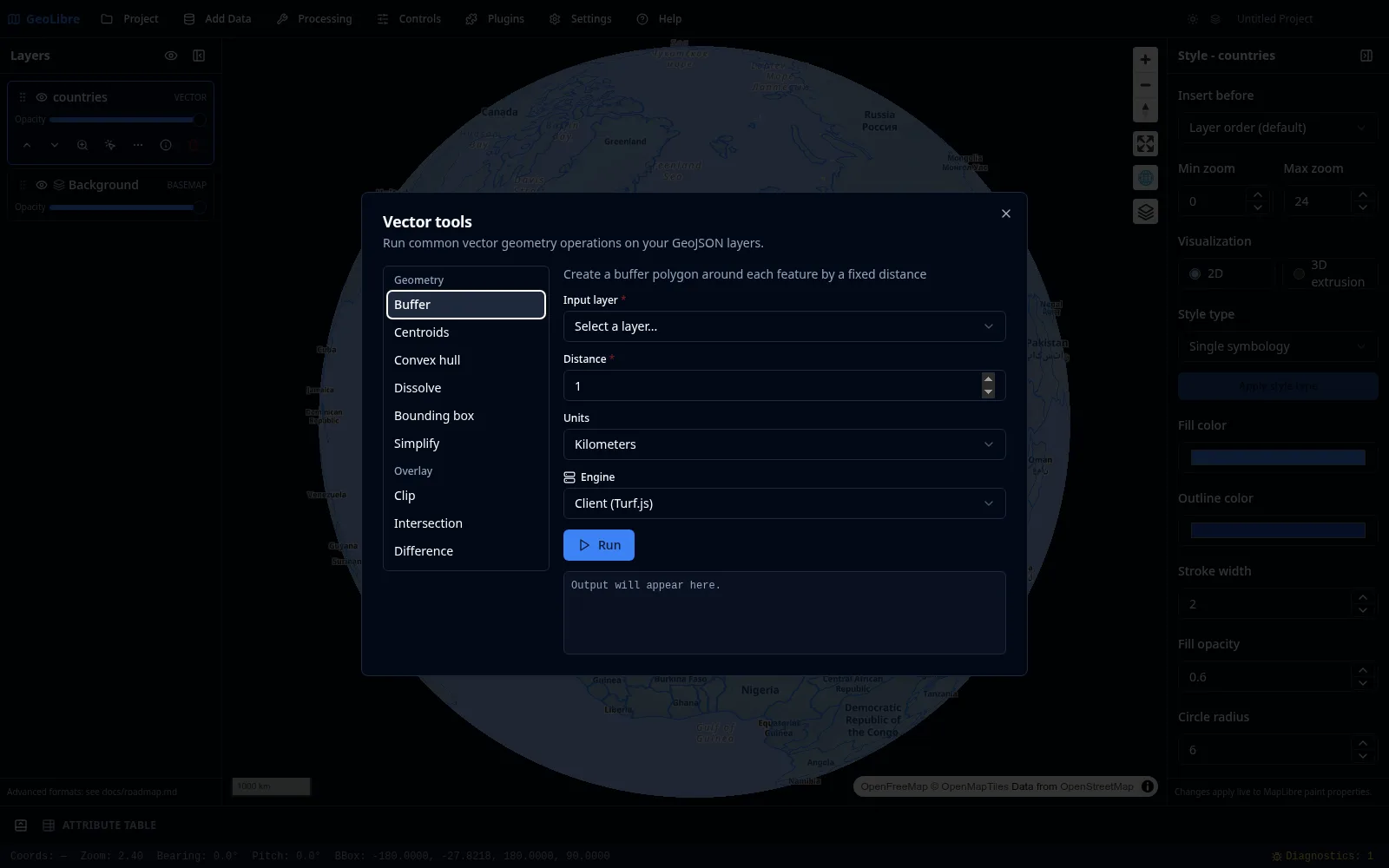
Processing → Vector opens the Vector tools dialog. Pick a tool from the list, choose the input layer and parameters, select an engine, then Run. Output appears as a new layer.
Geometry
| Tool | Description |
|---|---|
| Buffer | Create a buffer polygon around each feature by a fixed distance. |
| Centroids | Compute the centroid point of each feature. |
| Convex hull | Compute the convex hull enclosing all features. |
| Dissolve | Merge polygon features into a single geometry, optionally grouped by a field. |
| Bounding box | Compute the rectangular envelope of all features. |
| Simplify | Reduce the number of vertices using Douglas-Peucker. |
Overlay
| Tool | Description |
|---|---|
| Clip | Clip the input layer to the area covered by an overlay layer (keeps input attributes). |
| Intersection | Keep only the areas where both polygon layers overlap (merges attributes from both). |
| Difference | Remove the overlay layer's area from the input layer (keeps input attributes). |
| Union | Merge two polygon layers into a single combined geometry (attributes are not preserved on either engine). |
Join
| Tool | Description |
|---|---|
| Spatial join | Attach attributes from a join layer to each input feature based on a spatial relationship (intersects, within, or contains). Choose an inner join to keep only matched features or a left join to keep all input features. Works with any geometry type. |
| Attribute join | Attach attributes from a join layer (a table) onto each input feature where a key field matches — no geometry involved (e.g. join census stats to boundary polygons by FIPS code). One-to-one: the first matching join row wins. Choose which fields to bring over, and an inner join (keep only matched) or left join (keep all input). |
Select
| Tool | Description |
|---|---|
| Select by value | Extract features whose attribute matches a condition into a new layer. Pick a field, an operator (=, ≠, >, ≥, <, ≤, contains, starts with, is empty, is not empty) and a value. Comparisons are numeric when both sides are numbers, otherwise text. |
| Select by location | Extract features by their spatial relationship to a second layer (intersects, within, contains, or disjoint) into a new layer. Works with any geometry type. |
Engines
Every vector tool can run on one of three engines, selectable in the dialog:
- Client (Turf.js): runs entirely in the browser. No setup, works offline, and operates on the layer's GeoJSON.
- Sidecar (GeoPandas): runs on the optional Python sidecar for projection-aware results, backed by GeoPandas and Shapely. The dialog falls back to the client engine when the sidecar's optional
vectorextra is not installed. - Python (Pyodide): runs the same GeoPandas/Shapely code as the sidecar, but entirely in your browser via Pyodide — no server, so it works on the web build and the public demo too. The first run downloads the Python runtime once (a few tens of MB, fetched lazily from a CDN, so an internet connection is needed the first time); later runs reuse the warmed-up runtime. Because it shares the sidecar's Python, results match the Sidecar engine. By default the runtime loads from the public jsDelivr CDN, which is a trust assumption: a tampered CDN response would run unverified (Pyodide loads its own
pyodide.asm.js/WASM internally, so a subresource-integrity check on the entry script alone is not sufficient). For production or offline use, self-host the runtime by pointingVITE_PYODIDE_INDEX_URLat a mirrored copy of the Pyodide distribution, which removes the CDN dependency entirely.
See the Vector Analysis tutorial.
Raster
Processing → Raster opens the Raster tools dialog. Raster tools run on the rasterio Python sidecar: they take a file path in and write a file path out, then add the result to the map.
Terrain
| Tool | Description |
|---|---|
| Hillshade | Compute a shaded-relief raster from an elevation model. |
| Slope | Compute slope (steepness) from an elevation model. |
| Aspect | Compute aspect (compass direction of the steepest slope) from an elevation model. |
Reproject
| Tool | Description |
|---|---|
| Reproject | Warp a raster to a different coordinate reference system. |
| Resample | Resample a raster to a different pixel size (resolution). |
Clip
| Tool | Description |
|---|---|
| Clip by extent | Crop a raster to a bounding box (in the raster's CRS). |
| Clip by mask layer | Clip a raster to the geometries of a vector mask file. |
Raster to Vector
| Tool | Description |
|---|---|
| Polygonize | Convert a raster band into vector polygons grouped by pixel value. |
| Contour | Generate contour lines from an elevation model. |
Vector to Raster
| Tool | Description |
|---|---|
| Interpolation (IDW / Kriging) | Interpolate a point layer's numeric attribute into a continuous raster surface using inverse distance weighting or ordinary kriging. The output grid spans the points' extent at the chosen pixel size, in the layer's CRS. |
See the Terrain Analysis tutorial.
Conversion
Processing → Conversion writes data to cloud-native formats:
| Tool | Engine | Description |
|---|---|---|
| Vector to GeoParquet | Browser (DuckDB-WASM) | Hilbert-sorted, compressed GeoParquet. |
| Vector to FlatGeobuf | Sidecar | Hilbert-sorted, cloud-optimized, spatially indexed vector. |
| Vector to Shapefile | Sidecar | Hilbert-sorted, zipped ESRI Shapefile (field names truncated to 10 characters). |
| Vector to GeoPackage | Sidecar | Hilbert-sorted GeoPackage for sharing with QGIS/ArcGIS. |
| CSV to GeoParquet | Browser (DuckDB-WASM) | Convert a CSV with coordinates to GeoParquet. |
| Vector to PMTiles | Sidecar | Build a vector tile archive. |
| Raster to COG | Sidecar | Write a Cloud-Optimized GeoTIFF. |
The conversion sidecar is hardened with a path allowlist.
Whitebox
Processing → Whitebox opens the Whitebox toolbox for batch geoprocessing, backed by a managed Python sidecar. Point it at an input directory and run tools across the files in it.
AI Segmentation
Processing → AI Segmentation turns imagery into vector features with segment-geospatial (SamGeo) and Meta's SAM 3 model: choose a GeoTIFF, type a text prompt ("trees", "buildings") or run automatic segmentation, and the resulting polygons are added as a new layer. It runs the model in a separate samgeo-api server (a GPU is recommended) that the sidecar proxies. See the dedicated AI Segmentation page for setup and usage.
Planetary Computer and Earth Engine
The Processing menu also opens the Planetary Computer and Earth Engine panels for browsing and loading cloud datasets. See Data Integrations.
The Python sidecar
The raster tools, the sidecar conversion tools, the Whitebox toolbox, and the optional GeoPandas vector engine all use a local FastAPI sidecar that the desktop app starts on demand. The vector tools' client engine and the browser-based conversions need no sidecar. See Getting Started for setup and Reference → Architecture for how it works.
Browser vs desktop
The client-side vector tools and the browser conversions (Vector to GeoParquet, CSV to GeoParquet) run in the browser. The raster tools, sidecar conversions, and Whitebox require the desktop app and the Python sidecar.